
09, February 2020
How to Improve Your PC for Gaming
Compared to basic actions such as surfing the web or writing in a word processor, gaming is an activity that takes up a great proportion of your personal computer’s power. For your favorite games to run without hiccups, your computer’s components must work together optimally without splitting themselves amongst too many other programs at the same time. It’s why so many people choose to put in time enhancing their computer’s capabilities and even dedicating their computers to gaming. As a relatively new gamer, you can gain a lot by looking into how to improve your PC for gaming. Any of these changes can make your future gaming sessions better.
Adjust Automatic Startup Processes
Over time, your computer can accrue more processes that it automatically runs at startup. This comes as a result of downloading more programs as you use your PC for various tasks. Those programs may activate in the background when you turn on your computer, taking up precious memory and CPU space. Thankfully, you may adjust what runs in your startups by pressing the Windows Key and R together to view the Run Command window. Type in msconfig to go the System Configuration window next and go to the Services tab. Here, you can set and remove what programs activate in your bootups. Take out anything that you don’t need so that your computer isn’t slowed down as much.
Make Use of Game Mode in Windows 10
The Windows 10 operating system gives you the ability to turn on Game Mode whenever you want. Game Mode is designed to help improve your frames per second while playing games and also to prevent interruptions and disruptive slowdowns regardless of your computer’s hardware. It does this by ordering your game as the first priority for your CPU and graphics card while it is activated and preventing things such as updates from popping up while you are in the middle of the game. You can simply toggle it on by going into Settings, then Gaming, where you’ll see Game Mode as an option.
Regulate Automatic Updates
As alluded to in the previous section, automatic updates can hinder your gaming experience. Boxes notifying you that a new update is available may appear on your screen, which you must then click out of before continuing to play. At a crucial moment while you’re contending with an in-game enemy or another player, this can cause you to lose your confrontation as you fumble with the update window. Besides this, some updates start without prompting you at all. As they work in the background, they can slow down your game since your PC is handling more tasks. For non-game related updates, it’s best to carry them out as soon as you see them show up so that you don’t wind up in this circumstance. If you use the gaming service Steam, you can also go into settings and disallow updates to occur while you are playing a game.
Work on the Hard Disk Drive
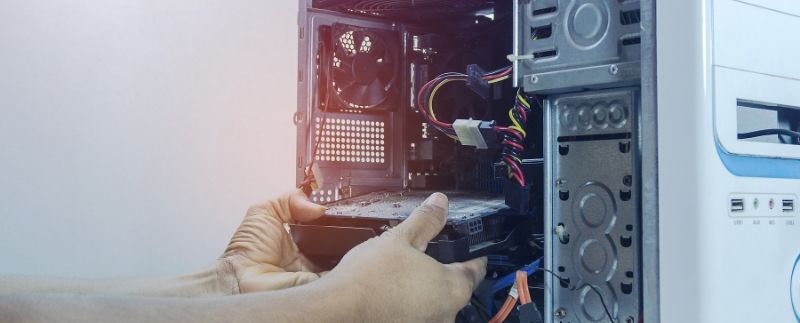
Your PC might rely on a hard disk drive (HDD) for its non-volatile storage needs. The hard disk can play a part in slowed gaming performance in two ways. The first is hindrance due to it reaching near-maximum capacity, and the second arises out of disk fragmentation. Although your random-access memory, or RAM, is chiefly responsible for taking care of data that is temporarily stored, a part of your non-volatile storage is used for that purpose as well. An HDD is already slower than RAM at handling this data, and when the HDD becomes about ninety-percent full, it becomes more sluggish. If you approach ninety-percent capacity or more in your hard disk, try going through an deleting those files that you don’t need to free up space.
As for fragmentation, this describes the breaking up data on the disk drive through regular use. Since the disk spins as data is stored on it, a contiguous piece of data may be separated into parts and placed in different regions of the disk when more of it is already filled up. Reading this data then takes longer. To speed up your PC’s reading times, you may defragment data in your HDD by reorganizing it so that it is not so scattered. You can carry out defragmentation with the defragmenter in Windows or through a third-party application.
Add a Solid-State Drive
There are a good number of gamers who replace their HDD with a solid-state drive (SSD) or add a solid-state drive to work with an HDD. SSDs are another form of non-volatile storage that uses transistors to hold data instead of a spinning disk. SSDs have superior read and write speeds to hard disks that can greatly improve your computer’s gaming performance. The startup and loading times that you must wait for in games will be significantly reduced when you have an SSD.
Include More Random-Access Memory
Your motherboard most likely has several slots for you to attach extra RAM modules. The games you play have a minimum amount of ram they need to work, but if your current RAM is only just above this threshold, you may see some screen breakups and lag. This happens because the other programs that your computer is running in the background push your RAM to its limits. When you improve your PC’s RAM, you can upgrade the type of RAM itself, add more gigabytes of RAM overall, or both. If you need to choose between the two, the factor that will help your gaming more is the amount of RAM you have.
Upgrade the Graphics Card
The graphics card is what determines the abilities and limitations of the visuals in your games. The resolution of the images displayed on your screen and the frame rate of the movements therein are affected by your graphics card. Some computers use integrated hardware instead of separate graphics cards to fulfill the same functions as well. Integrated graphics hardware is less powerful and usually won’t be enough to support gaming, so if that’s all you have, you should add a graphic card to your computer. There are also some computers whose motherboards contain multiple slots for graphics cards so that you can further boost your graphical gaming performance. Unlike with RAM, it may be better to upgrade a single graphics card to a newer version than to use several old cards, though, as you won’t see as much of an improvement with the latter setup.
Since you now know how to improve your PC for gaming, you’re probably going to want to locate the right components to do so. Visit DigiFast online for all your PC gaming equipment needs. We have a variety of NVMe SSDs that you can use to push your computer’s performance to new heights.

About DIGIFAST
DIGIFAST is a professional gaming equipment brand based in California, USA, and has been providing technological innovations and custom solutions for over 20 years. Through intelligent research and professional production capacity, we deepen the 3C, esports, and IT markets. We focus on developing high-quality and long-life products and provide consumers with personal storage devices, game peripherals, and bold innovative 3C technology products. The brand has been recognized by the industry and has pushed quality standards to become a trusted brand in the 3C technology and esports industry.
Official website: https://www.digifast-inc.com